

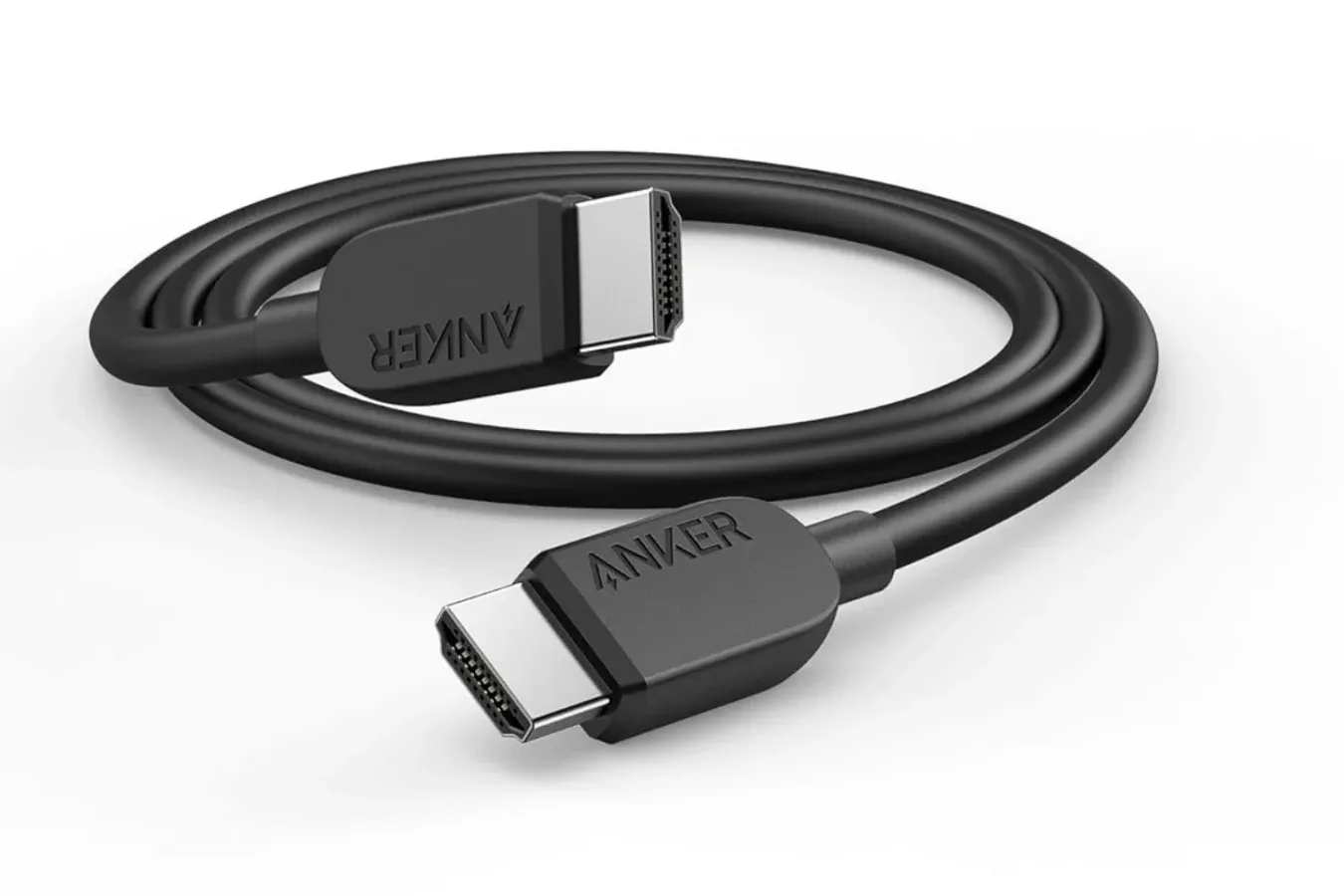
A new display, console, graphics card, or television can be the most exciting part of a gaming setup upgrade, but the cable connecting that hardware is often treated as an afterthought. That can be a mistake. HDMI cables are not all interchangeable once players begin chasing higher refresh rates, sharper image quality, variable refresh rate features, or the bandwidth demands of current-generation consoles and powerful PCs.
The 6-foot Anker HDMI 2.1 cable is currently listed at Amazon for $9, down from its usual $10 price. It is not an enormous saving in cash terms, but it brings an already inexpensive accessory down to one of its lowest listed prices. The offer is available to Prime and non-Prime customers, though stock and time-limited pricing can change quickly.
Shoppers who need a different run length have options within the same cable line. The 3-foot model is listed at $8, while the 10-foot version is listed at $12. Choosing the shortest cable that comfortably reaches between devices is generally the simplest approach, but a longer option can make sense for wall-mounted TVs, projector arrangements, standing desks, or consoles placed inside entertainment furniture.
What the Anker HDMI 2.1 cable is designed to handle
Anker lists this cable with support for up to 48Gbps of bandwidth, the headline capability associated with Ultra High Speed HDMI cable specifications. Its stated video support includes 8K resolution at 60Hz and 4K resolution at 120Hz on compatible equipment. Those capabilities make it relevant to players using a PlayStation 5, Xbox Series X, a gaming PC with a recent graphics card, or a display that includes HDMI 2.1 inputs.
For useful background on this topic, read Logitech MX Master 3S Returns to $80 in Limited-Time PC Accessory Deal.
There is an important distinction between what an HDMI cable can carry and what a particular system can output. A cable with 48Gbps capacity does not automatically make every game run at 4K and 120 frames per second. The console, PC hardware, game, television or monitor, HDMI port, and display settings must all support the selected mode. Many demanding games also require visual compromises, performance modes, or both to reach high frame rates.
The listed specifications emphasize 4K at 120Hz rather than 4K at 240Hz. Players shopping specifically for a 4K/240Hz monitor setup should verify the ports and signal requirements of their graphics card and display, as those configurations can depend on Display Stream Compression, DisplayPort, particular HDMI implementations, and the monitor's own supported modes. The cable may still be useful in a high-end desktop configuration, but it is worth checking the complete hardware chain before buying for that specific target.
Why cable quality matters for console and PC players
Older HDMI cables can work perfectly well for 1080p or standard 4K television viewing, yet become a limitation when users enable advanced features. If a setup is restricted to a lower-bandwidth cable or port, a display may not offer its 120Hz option, HDR could behave differently, or the system could fall back to a lower resolution or refresh rate. In some cases, an intermittent cable connection can appear as screen flickering, blackouts, handshake failures, audio dropouts, or a display that refuses to recognize a selected mode.
A properly rated HDMI 2.1 cable is therefore a practical piece of setup maintenance rather than a glamorous upgrade. It can be especially helpful when moving a current-generation console from an older television to a newer 4K TV or gaming monitor. It can also be useful for PC players who have upgraded their GPU and want to use a television as a large-format gaming display.
For Nintendo Switch owners, this kind of cable may be more about flexibility and durability than unlocking the full 48Gbps specification. The original Switch hardware does not require HDMI 2.1 bandwidth for its output. Still, a reliable HDMI cable can be convenient for a docked setup, capture equipment, a second room, or future hardware changes. The same general point applies to handheld PCs and laptops that output video through an HDMI adapter or dock: the capabilities of the adapter and display remain just as important as the cable itself.
Understanding 4K, 120Hz, and bandwidth
Resolution describes how many pixels appear on the screen, while refresh rate refers to how often the display updates each second. A 4K image contains far more pixels than a 1080p image, and a 120Hz display can update twice as frequently as a 60Hz panel. Sending both a very high resolution and high refresh rate requires considerably more data than standard 4K video playback.
That is where bandwidth enters the equation. The 48Gbps figure is intended to provide the headroom needed for demanding HDMI 2.1 use cases, including high-resolution, high-refresh output on compatible devices. The practical result for players can be a smoother-feeling camera movement, improved responsiveness in supported games, and a clearer path to using the features advertised by their display.
However, no cable fixes a game that is capped at 30 or 60 frames per second, and it cannot improve a panel's response time or input lag on its own. It simply removes one possible bottleneck between the source device and the screen. Before replacing a cable, players should also confirm that their TV or monitor is using the correct HDMI input. Some displays provide full-bandwidth features on only certain ports, and some require an Enhanced Format, Game Mode, Input Signal Plus, or similarly named option to be enabled in the display menus.
Features to check after connecting a new cable
Once the cable is installed, console players can open their video output settings to see which modes the display reports as available. On PlayStation 5 and Xbox Series X, users can check whether 120Hz output, HDR, variable refresh rate, and 4K options are recognized. The exact availability will differ from game to game and display to display.
PC users should check the operating system's display settings as well as the Nvidia, AMD, or Intel graphics control software. A monitor can remain set to 60Hz even when the hardware and cable are capable of more. Selecting the correct refresh rate manually is often necessary after connecting a display for the first time or switching to a new HDMI port.
- Confirm that the television or monitor input supports the desired HDMI mode.
- Use the display's game-oriented input setting if one is required for 4K/120Hz features.
- Check that the console or PC is set to the intended resolution and refresh rate.
- Update system software, graphics drivers, and display firmware when applicable.
- Test a few games, since individual titles may offer separate quality and performance modes.
A modest deal for an essential accessory
At $9 for the 6-foot version, the Anker HDMI 2.1 cable is primarily a sensible replacement or spare for anyone with compatible modern hardware. The $1 reduction is modest, but the total price remains low enough that it may appeal to players who need to replace a worn cable, set up a second screen, connect a console to a new TV, or keep a backup in a travel or LAN kit.
Anker says the cable is designed to withstand up to 1,000 bends, a useful consideration for setups where a cable is frequently unplugged, routed around furniture, packed into a bag, or moved between a desk monitor and living-room television. The package includes the cable, a welcome guide, and an 18-month warranty.
Compatibility is listed for HDMI-equipped devices including laptops, tablets, projectors, desktop displays, and other HDMI hardware. As always, buyers should measure the route between devices before selecting the 3-foot, 6-foot, or 10-foot length. A cable that is too short can put unwanted tension on HDMI ports, while excessive slack can make cable management harder than it needs to be.
For gamers, the most meaningful takeaway is straightforward: expensive displays and new consoles are only as capable as the connection linking them. This discounted Anker model offers the bandwidth and stated 4K/120Hz support that many current gaming setups need, without turning a routine cable replacement into a costly purchase.
Community
Discussion
Start the conversation.
No comments have been posted yet.