

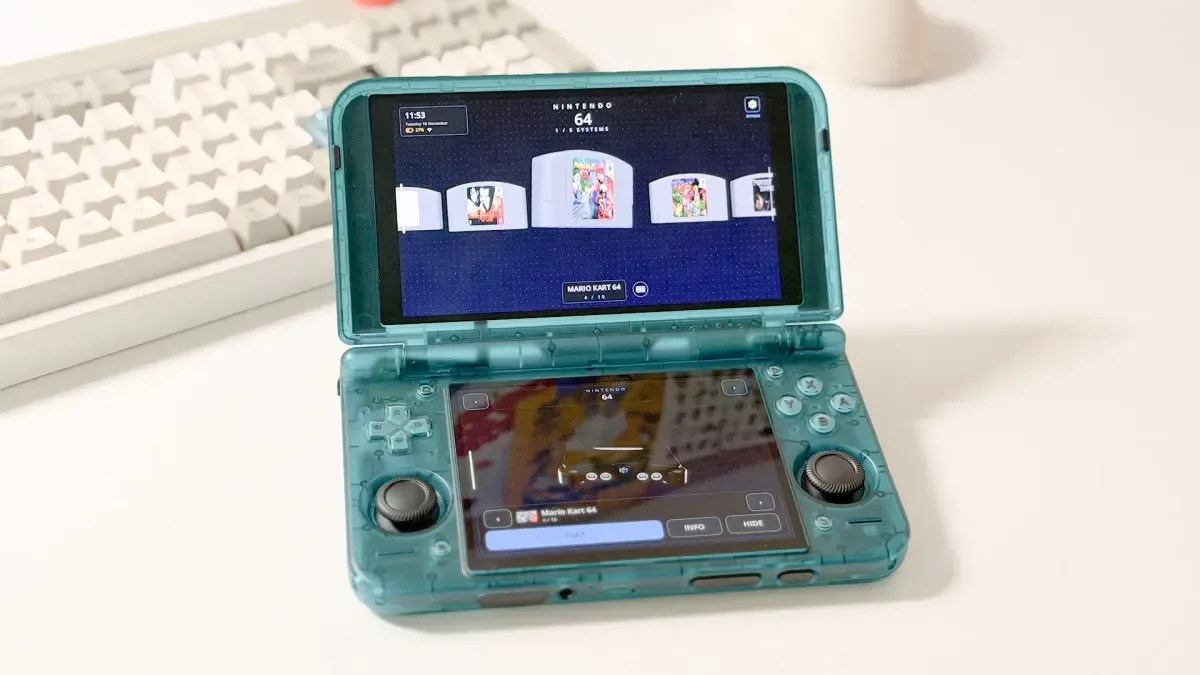
DigiBitPlay's Version 6 update is now available in its free release for Android and Windows, bringing one of the frontend's most notable additions to a much wider audience: proper support for dual-screen handhelds. The update is especially aimed at devices such as the AYN Thor, AYANEO Pocket DS and Retroid Pocket Duo, where the software can now treat each built-in display as its own purposeful space rather than extending a single image across both panels.
For players who use Android handhelds or a Windows PC to organize large collections of emulated games, native titles and PC libraries, the update is much more than a two-screen novelty. Version 6 also expands the free edition's supported systems, improves artwork and metadata options, adds game magazine integration, introduces backups, streamlines Android performance and delivers several quality-of-life changes intended to make a big game collection easier to browse.
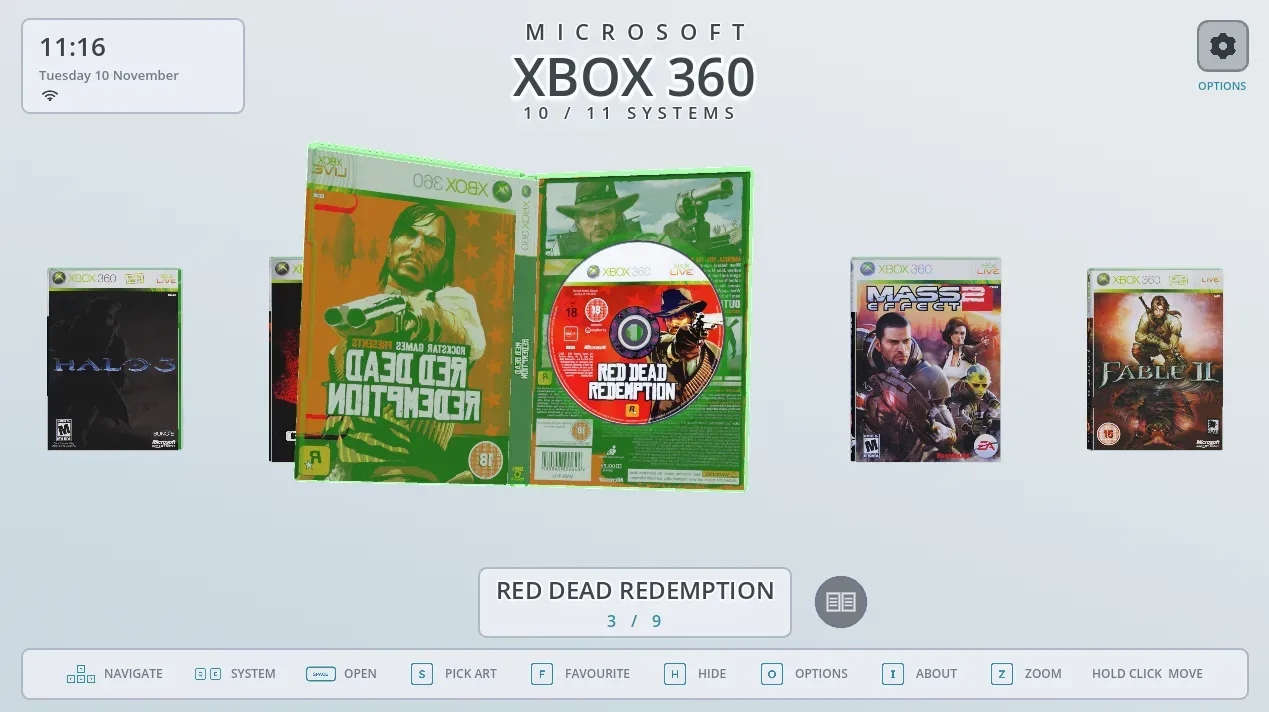
DigiBitPlay is a library frontend built around the physical presentation of games. Instead of focusing only on cover grids or text lists, it makes prominent use of cartridge art, disc art, console models and virtual game cases. That design direction remains central in V6, but it is now paired with more options for users who want a functional second screen while selecting, launching or playing games.
Two screens, separate jobs
The headline feature is dual-screen mode. When DigiBitPlay detects two built-in displays for the first time, it asks the user whether both should be used. Importantly, connecting an external monitor or television will not trigger this prompt. The feature is designed specifically around handheld hardware with integrated twin displays.
For useful background on this topic, read Cat Simulator 64 Brings Cozy Feline Mischief to Commodore 64.
Once enabled, the top screen can show the main frontend while the lower panel changes in response to the current selection. Users can choose from a number of arrangements in either 3D or 2D presentation styles. The available combinations include Cartridges and Console, Console and Games, Console and 3D Games, Game Library and Information, and Game Library and Manual.
DigiBitPlay presents these choices as a visual grid, showing previews on both displays so users can see what each arrangement will look like before committing to it. The selector is available when dual-screen mode is first set up and can later be revisited through Settings > Looks > Appearance > Dual Screen > Choose a layout with pictures. There is also a screen-swapping option for players who would rather put the primary frontend on the lower display and companion information on the upper one.
The update keeps the presentation cohesive with synchronized animations. Cartridges and discs can move from one display to the other and appear to enter the console shown on the bottom screen as a game starts. When the 2D mode is selected, both screens remain in 2D rather than mixing visual styles.
Navigation has also been considered beyond the initial layout. The game row on the lower screen supports swiping, holding and pinch-to-zoom gestures in the same way as the single-screen interface. Pressing Options while a console is visible on the top display opens settings for the game highlighted below. The App Drawer's app menu has additionally been corrected so it no longer appears on both screens at the same time.
Useful information while a game is running
The second display can continue to have a purpose after a game is launched. DigiBitPlay can use the lower panel for a game manual, a cheat sheet or a description, while other users may prefer to leave the console view displayed or hand the screen to the emulator. That flexibility could be particularly appealing for games with complicated controls, older titles that originally included substantial manuals, or RPGs and adventure games where supplemental material is handy.
Cheat sheets have received additional attention in V6. PlayStation 2, GameCube and Xbox 360 game cases can now include a folded cheat sheet beneath the manual clip. In dual-screen mode, the lower screen gains a dedicated CHEATS page. The feature is disabled by default and can be enabled through Settings > Looks > Shelf > What to show > Cheat sheet in the case.
Another new archival-style feature is game magazine support. Users can read scanned pages from older gaming magazines related to their currently selected title directly within the app. Issues are organized by language and include cover previews to help users choose the right edition. The Magazine button can be switched on or off under the Shelf display options.
Manual management is more flexible as well. A game's existing manual can be replaced with a different PDF or image file via Settings > Right now > This game > Manual > Replace manual file, with the virtual booklet and page display refreshing immediately after the replacement.
More systems in the free version
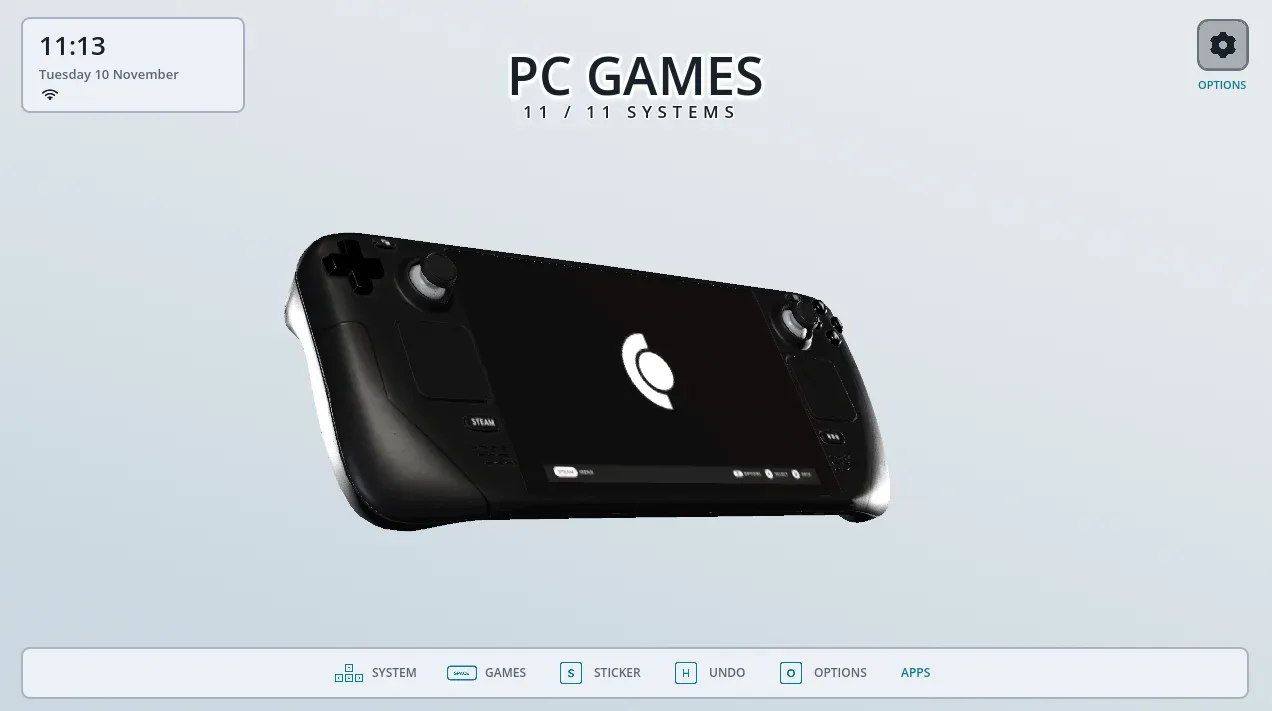
V6 broadens DigiBitPlay Free's scope across retro and modern libraries. The free version supports PlayStation, PlayStation 2, Game Boy, Game Boy Color, Nintendo 64, GameCube, Wii, Nintendo Switch, Xbox 360, Steam PC games and Android games. Newly added free-version options include Nintendo 64, SNES, GameCube, Wii, Nintendo Switch, Xbox 360, Steam and Android Games, with their own 3D console models and 2D imagery.
The platform list makes the frontend potentially useful for a hybrid collection: older cartridge platforms, disc-based systems, PC games and native Android releases can all sit in a single visually consistent library. Naturally, users remain responsible for configuring compatible emulators and ensuring they use game files and software lawfully.
Android game detection is now more automatic. DigiBitPlay can inspect the device's installed applications and add apps that Android identifies as games without requiring the user to assign a folder manually. Emulators are excluded, keeping the category focused on playable Android releases. New games are found when the frontend restarts, or immediately through Settings > Content > Library > Installed games. The automatic scan can also be disabled there.
The new Android App Drawer provides another way to access installed titles and applications. It opens by pressing Down twice from the game row, and its appearance can be adjusted under Settings > Looks > App Drawer.
PC games and broader launcher choices
For PC libraries, V6 adds DroidDeck support on Android. Steam games managed through DroidDeck can appear under DigiBitPlay's PC Games category and launch directly into DroidDeck, which then takes over the Steam launch process. The setup involves syncing DroidDeck frontend files to a chosen folder, adding that folder to DigiBitPlay's PC Games library, and allowing DigiBitPlay to use DroidDeck when no different PC Games app has been selected.
DigiBitPlay now also allows individual games to open through a user-selected app or program rather than always using their configured emulator. Android users are shown the App Drawer to choose an app, while Windows users select a program. This should make the frontend more adaptable for alternative emulators, streaming tools, compatibility layers and unusual game setups. V6 further adds emulator configurations for the newly supported free systems, alongside additional Winlator and Steam-on-Android launcher options.
Library organization receives a practical improvement too: more than one folder can now be assigned to a single console. That is useful for collections divided between internal storage, SD cards, separate drives or folders organized by region and format. Folder management is found at Settings > Content > Library > Folders.
Artwork, descriptions and a smoother interface
The update adds the LaunchBox Games Database as an artwork source. It does not require an account or API key, and can retrieve cover art, back covers, cartridge and disc scans, spines, screenshots, backgrounds and game details. The artwork provider can be selected through Settings > Looks > Artwork > Download art > Artwork source.
Game descriptions now load automatically. If users do not have a scraper account configured, DigiBitPlay can fall back to Wikipedia for descriptive information. A redesigned introductory setup process also uses a full-screen format, clearer sections and visual examples for selecting artwork styles. The revised opening screens are intended to fit properly on 4:3 displays as well.
There are smaller browsing improvements throughout the interface. Recently played titles are collected in a Continue Playing case placed at the end of the console list, allowing players to jump back into familiar games quickly. Switching systems now brings the game row in with a sliding animation rather than having it appear abruptly. The dark edge vignette has been removed, producing brighter scenes with more even lighting across consoles and games.
Users can choose automatic light and dark themes based on a preferred time of day. Settings themselves can be displayed either in the existing side drawer style or as a centered box with a sidebar. Text in settings has been enlarged and made slightly bolder for better readability on small phones and handheld screens.
Performance, haptics and preservation-minded backups
Android users should see technical improvements as well as cosmetic ones. DigiBitPlay V6 reduces memory use and targets faster loading. Manual covers are now saved instead of being rebuilt repeatedly, while the number of covers retained in memory adapts to the amount of RAM available on the device. Several 3D console and case models have also been optimized to load faster and run more smoothly.
A previously reported Android problem that could make closed game cases appear stretched or malformed has been fixed. The update also addresses a controller issue in which input could become trapped behind the settings menu while the Quit confirmation box was open.
Controller vibration is now supported for actions including rapid scrolling, opening game boxes and inserting cartridges. Slow scrolling stays silent, and users can change the vibration intensity or turn it off entirely through Settings > App > Sound & controls > Vibration.
Finally, V6 introduces Backup & Restore. The feature packages settings, covers, manuals and other data into a single ZIP file, which can then be restored later or moved to another device. For users who have spent substantial time curating artwork, manuals and a multi-system library, that could be one of the update's most valuable additions.
DigiBitPlay V6 is a substantial expansion for a frontend already focused on making digital collections feel more like physical shelves. Its dual-screen mode is the obvious draw for new handheld designs, but the larger release also makes the free version more capable for conventional Android devices and Windows PCs. The update is available through DigiBitPlay's official Patreon page.
Community
Discussion
Start the conversation.
No comments have been posted yet.