

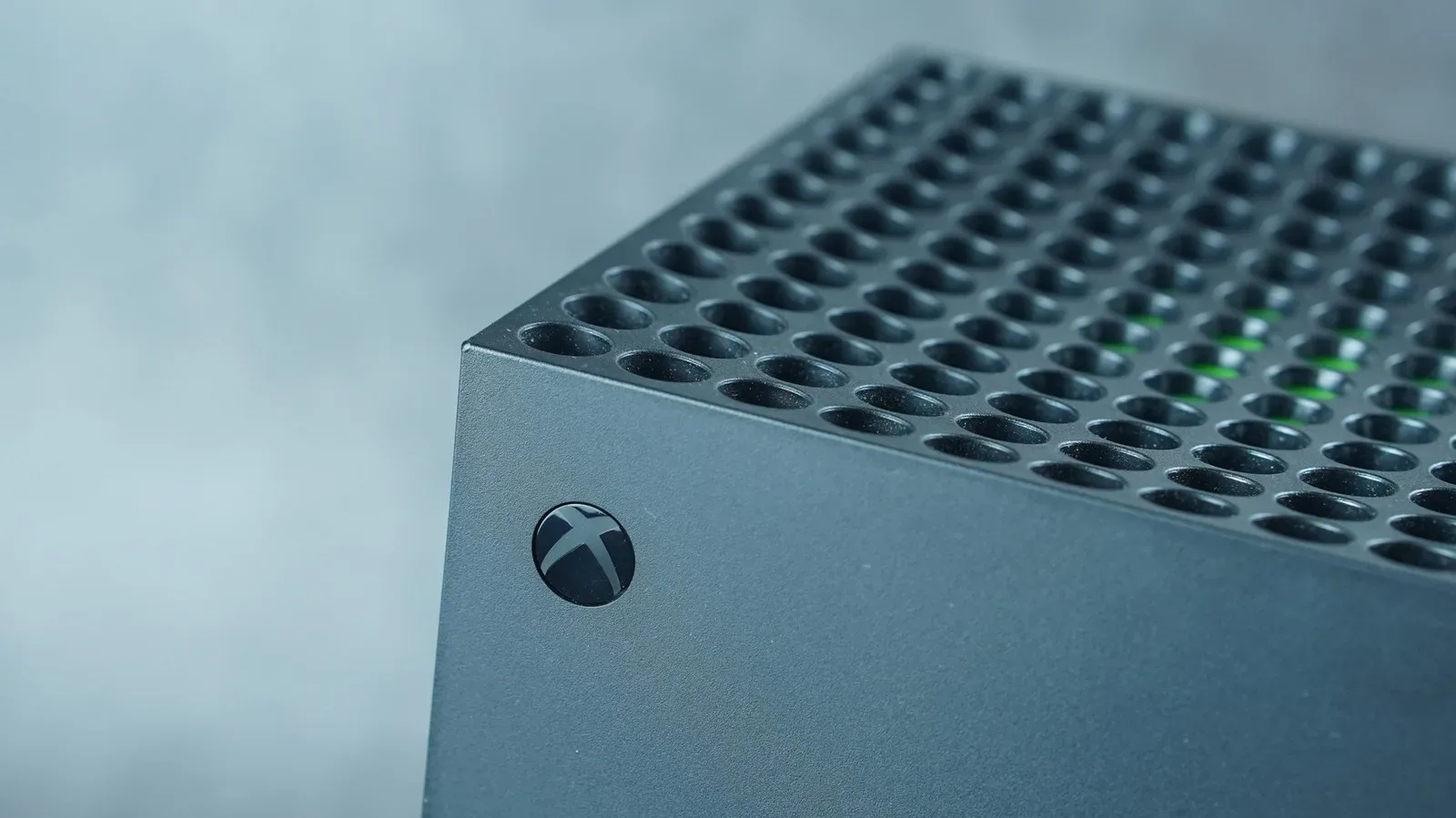
An Xbox Series X is built to make jumping between games, apps, and the dashboard feel quick, but no console stays perfectly fresh forever. After months or years of use, temporary system files can accumulate. In some cases, those files may become corrupted or simply contribute to odd behavior: menus that feel slower than usual, games that fail to load properly, persistent connection errors, or glitches that remain after an ordinary restart.
One useful troubleshooting step is to clear the console cache through a complete power cycle. This does not delete installed games, screenshots, captures, user profiles, or save data. Instead, it clears temporary information held by the system, forcing the Xbox Series X to rebuild what it needs during the next startup and while games are used again.
It is not a cure-all, and it is not something players need to perform on a rigid weekly or monthly schedule. But when an Xbox Series X feels unusually sluggish or a game is producing loading and connectivity problems, it is a sensible low-risk step to try before moving on to more disruptive measures.
What the Xbox Series X cache does
A cache is temporary storage designed to make frequently used processes faster. Rather than loading the same interface elements, settings, or other data from scratch every time, a system can retain certain files so it can access them more quickly later. This is a normal and useful part of modern hardware.
For useful background on this topic, read Grand Theft Auto's 13-Year Gap Shows How Dramatically Game Development Has Changed.
The downside is that temporary data is still data. It can pile up, fail to update cleanly, or conflict with a game or system update under certain circumstances. When that happens, the intended speed benefit can turn into a source of instability. Clearing the cache gives the console an opportunity to discard that temporary material and start rebuilding it.
This is particularly worth considering when a standard restart has not helped. A normal restart is often enough for minor problems, but a full power cycle goes a little further by fully cutting power to the console before it starts again.
How to clear the Xbox Series X cache
The process is straightforward and requires no special tools or access to hidden menus. Make sure the console is not in the middle of installing an update, downloading a game, or saving progress before you begin.
- Turn off the Xbox Series X.
- Disconnect the power cord from the console or its power source.
- Leave the console unplugged for approximately two minutes.
- While it is disconnected, press the power button several times. This helps discharge remaining power.
- Reconnect the power cord.
- Turn the Xbox Series X back on and allow it to complete its full startup process.
A successful power cycle should result in the familiar Xbox logo and a full boot sequence rather than an unusually quick return from a low-power state. Once the dashboard is available, launch the game or app that was causing trouble and see whether the issue has changed.
Because this is a temporary-data cleanup, it should not require you to reinstall games or recover cloud saves. Your installed library and saved progress should remain intact. Still, it is always good practice to let a game finish syncing before shutting down a console, especially if you have just played offline or have recently earned progress you do not want to risk leaving unsynchronized.
When a cache clear is most useful
There is no need to power-cycle an Xbox Series X constantly just for the sake of maintenance. The best time to do it is when there is a recognizable problem that has survived simpler fixes.
- Games are reporting repeated loading failures.
- The dashboard is responding more slowly than normal.
- A game has unusual connectivity issues that are not explained by the home network.
- An app or game behaves incorrectly after an update.
- The console has been used heavily over a long period and has begun to feel less responsive.
Some game-specific support guidance also identifies cache clearing as a potential fix for loading errors. Rocket League, for example, has listed an Xbox Series X cache clear among troubleshooting steps for load-failure problems. That does not guarantee the method will solve every issue, but it shows why a power cycle is often included in the first tier of console troubleshooting.
Results can vary from game to game. One player may notice smoother navigation or faster startup after clearing temporary files, while another may see no immediate difference. There can also be a short adjustment period as the console and games recreate cached data. A report from a Microsoft Flight Simulator player noted temporarily longer loading after the procedure, while another player reported faster boot behavior. Neither outcome should be treated as universal.
What clearing the cache will not fix
A power cycle is a practical troubleshooting measure, not a replacement for every other kind of diagnosis. If a single game is broken while every other title runs normally, check for an available game update and consider the game's own support steps. If multiple devices in the home are dropping offline, the likely issue may be the router, internet service, or network configuration rather than the Xbox cache.
Likewise, hardware concerns such as severe overheating, persistent crashes, unusual fan behavior, or storage problems may need more than a cache clear. Keep the Series X in an open area where air can move around it, and periodically remove dust from the exterior vents. Effective airflow matters because the console needs to manage heat during long sessions, demanding games, downloads, and system updates.
Do not block the vents with enclosed furniture, stacks of other electronics, or fabric. A cache cleanup can address temporary software clutter, but it cannot compensate for poor ventilation.
If problems continue, use the Xbox reset options
When the Xbox Series X remains unreliable after a full power cycle, the built-in reset tools are the next major step. Before resetting, connect the console to the internet and give it time to synchronize save data with the Xbox network. This is especially important if you have been playing while offline, as unsynced saves could otherwise remain only on the local console.
To access the reset menu, follow this path:
Settings > System > Console info > Reset console
There are two important choices, and they are not equally destructive.
Reset and keep my games & apps
This is the less disruptive reset option. It refreshes the system while retaining installed games and apps, saving you from downloading an entire library again. You should still expect to sign back into accounts and review some settings afterward, but it is a strong next step when normal troubleshooting has failed and you want to avoid a complete wipe.
For many players, this is the best escalation after clearing the cache. It targets deeper system-level problems without immediately turning the console into a blank slate.
Reset and remove everything
The full factory reset removes the contents of the console. Installed games, apps, local accounts, and settings are wiped, and any data that has not synchronized can be lost. It is the most thorough software reset available, but it also comes with the most inconvenience: signing in again, reconfiguring preferences, and downloading games and updates anew.
Use this option only when the Series X is still performing poorly after less drastic troubleshooting or when you specifically need to completely erase the console. Verify that important saves have synced before proceeding.
Important: A full reset can remove unsynced local data. Connect to the internet and confirm that your games have had a chance to synchronize before choosing the option to remove everything.
A practical maintenance approach
The simplest approach is to match the solution to the severity of the problem. Start with a standard restart for a minor hiccup. If the issue persists, perform the two-minute unplugged power cycle to clear temporary cached files. Test the affected game or app. If the Xbox still feels slow or unstable across multiple titles, use the reset menu and begin with Reset and keep my games & apps. Reserve the full erase option for stubborn cases where you have protected any save data that matters.
In day-to-day use, keeping the console ventilated, allowing updates to finish, and making sure saves have time to sync will do more than repeatedly clearing the cache on a schedule. Still, knowing how to perform a proper power cycle is valuable. It is fast, does not interfere with your library or progress, and can resolve the sort of temporary software problems that turn a relaxed couch session into an unnecessary troubleshooting project.

Community
Discussion
Start the conversation.
No comments have been posted yet.