


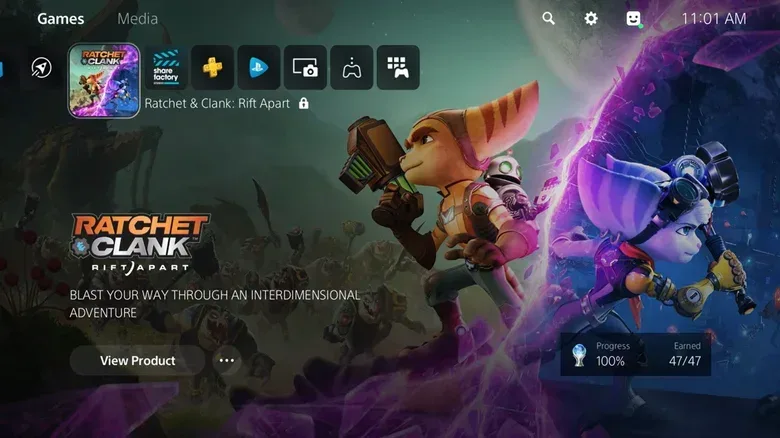
There are few things more frustrating than sitting down to play a game on PlayStation 5, opening your library, and finding a small padlock stamped over the title you expected to launch. The icon can be especially confusing when the game is already installed on the console. In many cases, there is nothing wrong with the installation itself. Instead, the PS5 is unable to confirm that the account currently using the system has the right license to play it.
The key point is that digital purchases, subscription downloads, and games accessed through sharing arrangements are all tied to account permissions. A game may be present on the SSD, but the console still needs to determine whether it can authorize access. That is what the padlock symbol is communicating: the PS5 cannot currently validate the entitlement required to start that particular title.
This does not automatically mean that a purchase has disappeared or that a game is permanently unavailable. The cause may be as simple as being logged into the wrong account, a temporary PlayStation Network issue, an expired PlayStation Plus membership, or a shared-console setting that has been changed. Disc games can also display a padlock if the physical disc is not available to verify ownership.
With Sony planning to stop making disc-based games beginning in January 2028, understanding how digital access and license checks work is likely to become even more important. For now, PS5 owners have several practical checks they can make before assuming the worst.
For useful background on this topic, read EU Action Targets Activision, Riot, Ubisoft and Others Over In-Game Currency Practices.
The padlock is a license warning, not necessarily a broken game
When a digital game is bought through an online storefront, the buyer generally receives a license to download and play it through the associated account. That differs from having unrestricted ownership of a physical object. The account, the network services used for verification, and the terms of a subscription or sharing setup can all affect whether the PS5 recognizes access at a given moment.
The padlock icon appears when that recognition fails. It can happen because the game was purchased with another PlayStation account, because the console has not refreshed its license information, or because the title came from a PlayStation Plus catalogue that is no longer available through the subscriber's current plan. It can also appear after a service outage or an account change.
Installed does not always mean authorized. The game data can remain on the PS5 even when the account's license is inactive, unrecognized, expired, or unavailable. That distinction explains why deleting and reinstalling a game is usually not the first or most useful fix for a padlock.
Start by checking the account signed into the PS5
The most basic explanation is often the correct one: the current user may not be the account that bought or claimed the game. Purchases and subscriptions are associated with a PlayStation account, so signing into a different profile can make a title appear locked even if it was downloaded to the same console.
To sign out, go to Settings > Users and Accounts > Other > Sign Out. To sign back in, head to Settings > Users and Accounts > Account > Sign In. The same area is also where additional accounts can be created and managed.
If multiple people use one PS5, take a moment to identify which account actually purchased the game. A title bought directly by one family member or friend will not necessarily be playable from every account unless the console-sharing settings are configured properly. The same applies to games claimed through a subscription: the account that claimed them and the condition of that account's membership matter.
Check PSN status before changing console settings
A temporary PlayStation Network problem can interfere with license authentication. If PSN services are experiencing disruption, a game may show the padlock even though the account is correct and the purchase is still valid.
Check the PlayStation Status page to see whether there are reported issues affecting account management, the PlayStation Store, gaming services, or other relevant functions. If an outage is underway, the sensible solution may simply be to wait until services return to normal and then try again.
This is also a useful step because it prevents unnecessary troubleshooting. Resetting settings, rebuilding a database, or repeatedly downloading a game will not resolve a widespread service-side outage. Once PSN is functioning normally, restarting the console and restoring licenses may be enough to clear the icon.
Confirm the purchase or PlayStation Plus entitlement
If PSN is working and the correct account is active, confirm how the game was obtained. A direct PlayStation Store purchase should appear in the account's transaction record. On PS5, go to Settings > Users and Accounts > Account > Payment and Subscriptions > Transaction History and review the relevant period.
If the game is listed there, that is a strong indication that the account made the purchase. If it is not, consider whether it may have been bought from another account on the console, claimed through PlayStation Plus, or obtained on a different account entirely.
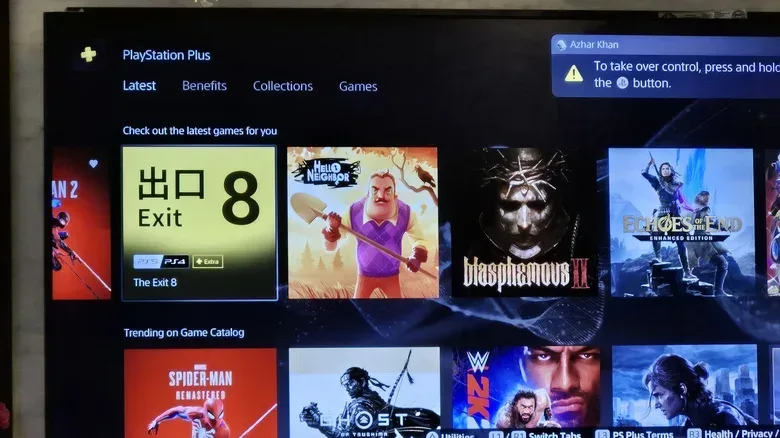
For PlayStation Plus titles, check the membership status under Settings > Users and Accounts > Account > Payment and Subscriptions > Subscriptions. A lapsed membership can remove access to games that depend on that subscription. The available PlayStation Plus catalogue can also change over time. If a title that was previously downloaded leaves the relevant library, it may become locked even though its data remains installed.
That distinction is important: a game purchased separately is not the same as a game accessed only through a subscription catalogue. Likewise, titles claimed under one type of benefit may have different access conditions from titles that are included while a particular catalogue subscription remains active.
Check Console Sharing and Offline Play for shared games
Many households use a single PS5 with several accounts. PlayStation's sharing feature can allow users on that console to play games associated with another account, but it needs to be enabled correctly. The feature is called Console Sharing and Offline Play, and it is found at Settings > Users and Accounts > Other.
Only one PS5 can have this setting enabled at a time for each account. That limitation matters if the game owner has more than one console. If they enabled sharing on a different PS5, the console in front of you may no longer have access to that person's library, which can result in padlocks across shared games.
In that case, the account holder may need to sign into the intended console and enable Console Sharing and Offline Play there. Anyone relying on shared access should also remember that they are depending on the owner's account and configuration. A change made on another PS5 can affect the arrangement.
Restore licenses from the game tile or system settings
When the account should have access but the PS5 is not recognizing it, use the built-in license refresh tool. For a single game, highlight the title in the library, press the controller's Options button, and select Restore License.
To refresh permissions for multiple games at once, go to Settings > Users and Accounts > Other > Restore Licenses. This process asks PlayStation's services to re-check the account's entitlements. It is particularly useful following an outage, an account recovery, a subscription renewal, or a situation where several titles unexpectedly became locked at the same time.
Restoring licenses is generally a better early troubleshooting step than deleting installed games. It addresses the access problem directly and does not require another lengthy download.
Restart and update the PS5
If the padlock remains after the account and license checks, restart the console. Press the PS Button, open the Power menu, and select Restart PS5. A full restart can clear a temporary system or connection issue that has prevented the console from refreshing access.
It is also worth checking for system software updates at Settings > System > System Software > System Software Update and Settings. Updates will not necessarily solve a specific license problem, but installing the latest available software helps rule out known system bugs and keeps the console's services functioning as expected.
For disc games, the disc is the ownership key
A padlock can appear on a disc-based game too, and the explanation is simpler in that situation: the PS5 needs the correct disc inserted to authenticate the game. The installed data alone is not enough. The disc acts as the key that tells the system the user can launch the title.
First, make sure the matching game disc is in the console. Eject it and inspect it for dirt or obvious damage, then reinsert it carefully. For a PS5 positioned horizontally, the label should face up. When the console is vertical, the label should face left.
Also ensure that the disc matches the installed game. A different edition, region-related complication, or simply inserting the wrong disc will not satisfy the authentication check. If the console cannot read the disc reliably, further hardware or disc troubleshooting may be needed.
Use Safe Mode only after the simpler fixes fail
If account checks, license restoration, a restart, updates, and disc verification have not helped, a database issue may be involved. The PS5 Safe Mode menu includes cache-clearing and database-rebuilding tools that can address certain system-level problems.
- Turn off the PS5 by holding the Power button on the front of the console until a second beep is heard.
- After the system has shut down, press and hold the Power button again.
- Release the button after hearing two beeps. The second beep should occur roughly seven seconds after the first.
- Connect the controller with a USB cable and press the PS Button.
- In Safe Mode, select Clear Cache and Rebuild Database.
These options should be treated as later-stage troubleshooting rather than the first response to a lone padlock icon. If the issue persists after completing the relevant checks, contacting PlayStation Support is the appropriate next step, especially when a transaction history shows a purchase that the account still cannot access.
In most cases, the fix is less dramatic than the icon makes it seem. Verify the account, check PSN, confirm the entitlement, review sharing settings, and restore licenses. Those steps address the most common reasons a PS5 game library suddenly looks locked down.
Community
Discussion
Start the conversation.
No comments have been posted yet.