

A desktop gaming PC can have a powerful dedicated graphics card, plenty of memory and a fast processor, yet still deliver unexpectedly poor frame rates. Before assuming a component is faulty, outdated or improperly configured, there is one remarkably easy thing to inspect: where the monitor cable is connected.
Many desktop PCs offer video connections in two separate locations. One group of HDMI, DisplayPort or USB-C ports is built into the motherboard. Another group belongs directly to the dedicated graphics card. Because the same monitor cable may physically fit in either place, it is easy to plug into the wrong output during setup, after moving a PC, or when reconnecting equipment following an upgrade.
For a conventional gaming desktop with a dedicated GPU, the monitor should normally be attached to an output on the graphics card itself. Connecting it to a motherboard video port can make the system use integrated graphics instead, or route video through the integrated GPU in a way that adds unwanted overhead. The result may range from reduced gaming performance to no image at all.
Why the correct video port matters
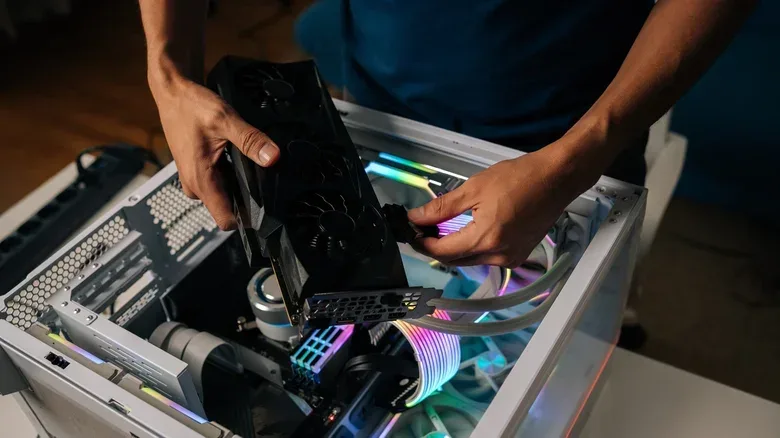
A dedicated graphics card sits in a PCIe expansion slot and is built to handle demanding visual workloads. Modern games rely on it for high-resolution rendering, ray tracing, advanced effects and the high frame rates needed to make the most of a fast gaming monitor.
For useful background on this topic, read League of Legends: New Dawn Revealed as Riot Plans Major 2027 Overhaul.
Motherboard display outputs, by comparison, generally connect to the processor's integrated graphics. Integrated graphics can be perfectly useful for web browsing, streaming video, office work and lighter games, but they are typically not comparable to a dedicated gaming GPU. If a game runs through integrated graphics when a dedicated card is available, it may not receive the performance expected from the PC's most expensive visual hardware.
This setup does not always behave the same way on every system. In certain Windows configurations, the dedicated card may still render a game while frames are passed through integrated graphics before reaching the display. That can introduce extra processing and may reduce performance, although the practical impact depends on the processor, graphics card, drivers, game and display configuration. There is no universal percentage by which performance will fall.
That variation is why the mistake can be difficult to spot. Some players may immediately notice low frame rates, missing graphics options or poor results in benchmarks. Others may have a system that appears to work normally but is not delivering all the performance it should. In other cases, selecting a motherboard port produces a black screen instead of a desktop.
For another perspective on this story, read Check This PC Cable First If Your Gaming Performance Feels Wrong.
How to identify the motherboard and GPU ports
The back of a desktop tower usually makes the distinction fairly clear once you know what to look for. The motherboard's rear input and output panel is normally positioned higher on the case. Its display outputs are grouped with other motherboard connections, such as USB ports, Ethernet, audio jacks and sometimes wireless antenna connectors.
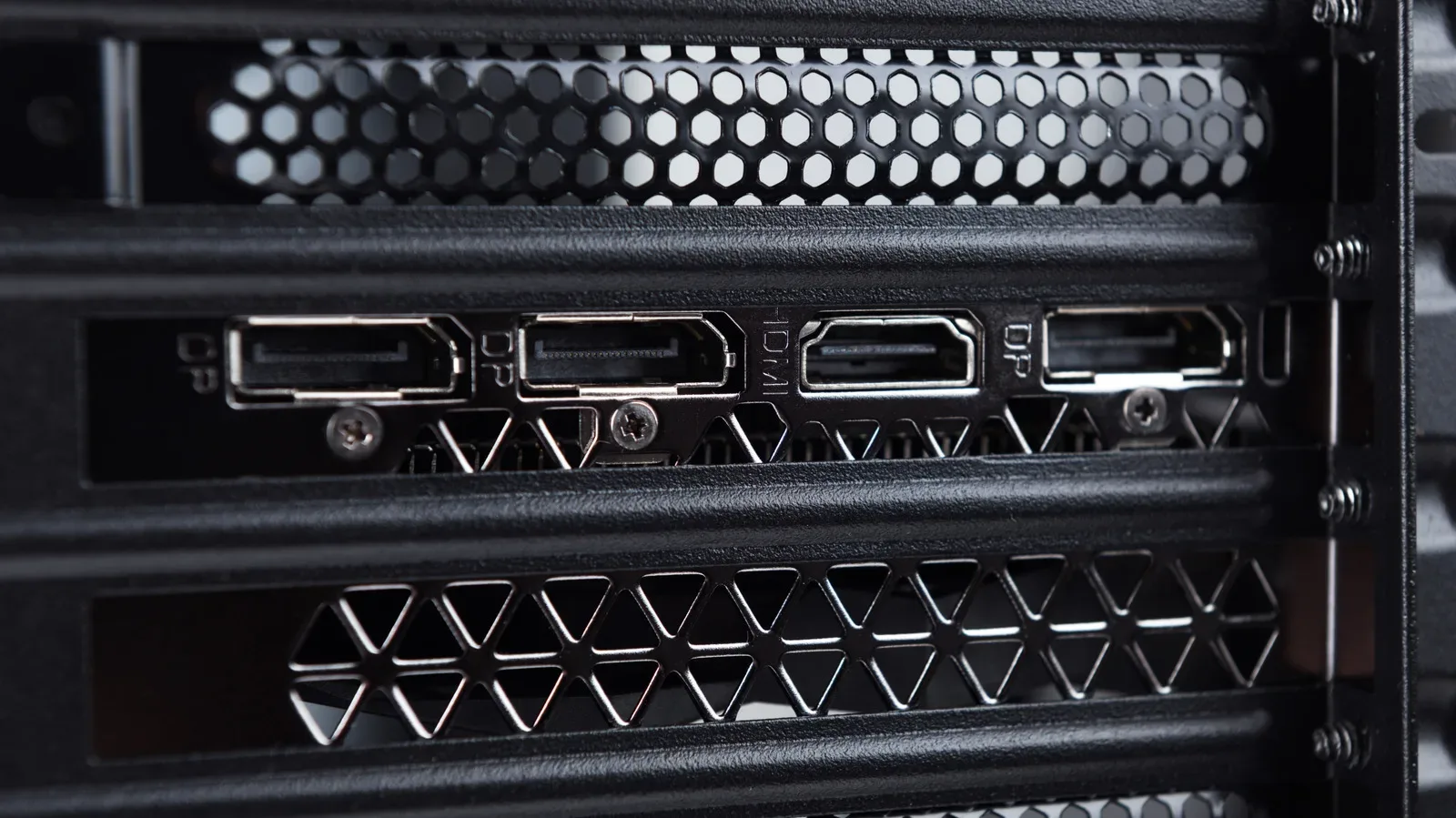
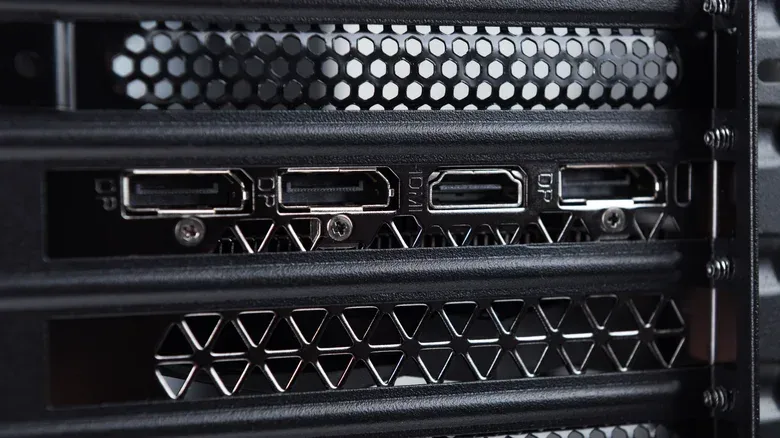
The dedicated graphics card uses a separate expansion bracket farther down the back of a standard tower case. Its HDMI and DisplayPort sockets are installed in a horizontal row or rows on the card's bracket. This is where the main gaming monitor should generally be connected.
Case layouts differ, especially in compact PCs and systems that are placed horizontally, so it is better to trace the ports than to rely solely on whether they appear high or low. Find the physical graphics card inside the case if necessary, then identify the ports mounted directly on its rear bracket. Those are the outputs intended for the dedicated GPU.
- Motherboard outputs: Usually grouped beside USB, network and audio ports.
- Graphics card outputs: Usually located on separate expansion slots and attached directly to the installed GPU.
- Typical ports: Both locations can include HDMI or DisplayPort, so connector shape alone is not enough to identify the right one.
Move the cable safely
The practical fix is often just a cable swap. Shut down the PC before changing connections, move the monitor cable from the motherboard output to a port on the dedicated graphics card, then turn the system back on. Make sure the monitor is set to the input that matches the newly used cable and port.
There is no inherent need to replace an HDMI cable with DisplayPort simply because a gaming PC has both options. HDMI and DisplayPort can each support high-refresh-rate gaming, but the actual result depends on the monitor, the graphics card, the cable and the resolution and refresh rate being requested. If an existing HDMI connection works properly at the desired settings, it remains a valid choice.
DisplayPort is common on modern gaming displays and graphics cards, while HDMI can be especially convenient for many monitors and TVs. The important point is not which label is more prestigious. It is that the cable is attached to the dedicated GPU and supports the display mode you intend to use.
Check that Windows is using the intended refresh rate
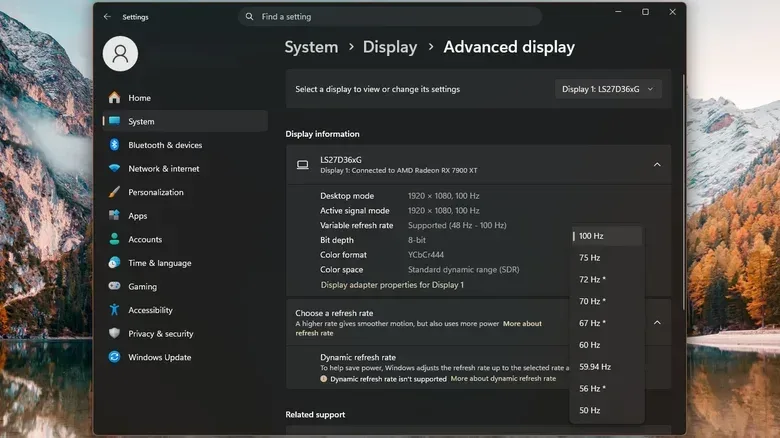
Correcting the physical connection is a major step, but it is worth confirming the monitor is configured to run at its advertised refresh rate. A 100Hz, 144Hz, 165Hz or higher-refresh-rate display will not automatically show that many updates per second if Windows is set to 60Hz.
On Windows 11, open Settings, choose System, select Display, and then open Advanced display. The refresh-rate setting should show the options supported by the current monitor connection. Select the intended rate if it is available.
This setting does not create performance out of nowhere. A game still needs to render enough frames to benefit from a high-refresh display. But leaving a fast panel at 60Hz means it can only present 60 updates each second, even if the graphics card is capable of producing more.
If the desired refresh rate or resolution does not appear, check the monitor's on-screen settings, the GPU driver control panel and the cable specification. A cable or adapter may be the limiting factor, particularly with high resolutions and very high refresh rates. Avoid assuming that every cable supporting a physical HDMI or DisplayPort connector supports every version of that standard or every display mode.
Why a black screen may not mean the GPU is broken
A motherboard display output may not work at all in a gaming PC, and that can be normal. Intel desktop processors with an F or KF suffix do not include integrated graphics. On systems using those processors, motherboard video ports cannot output an image because there is no integrated GPU available to power them.
Some motherboards and PC configurations also disable integrated graphics automatically when a dedicated graphics card is installed. That means a blank screen from the motherboard port does not, by itself, prove that the dedicated GPU has failed. It may simply be evidence that the system expects the display to be connected to the card.
If the display goes black after moving the cable to the graphics card, start with the simplest checks. Confirm that the monitor has been switched to the correct HDMI or DisplayPort input. Try another output on the GPU, since cards frequently include multiple DisplayPort connections and sometimes more than one HDMI port. Testing another known-good cable can also rule out a cable issue.
Only after those basic steps should you move on to internal troubleshooting. If you need to inspect GPU power connections or reseat the graphics card, fully shut down the computer and unplug it from power first. Avoid handling internal components while the system is powered.
Using multiple monitors
There are situations where motherboard video outputs can still be useful. If integrated graphics remain enabled and the system supports it, a second monitor may be connected to a motherboard output while the primary gaming display remains connected to the dedicated card. This can be convenient for chat, music, web pages or stream controls.
Compatibility varies by motherboard, processor and firmware settings, however, so it should not be treated as guaranteed. The primary display used for games is still best connected directly to the dedicated graphics card when gaming performance is the priority.
A quick check worth making
Gaming performance problems can have many causes, from demanding settings and thermal limits to driver issues, background tasks and mismatched display configuration. But checking the monitor cable is faster and safer than changing hardware or reinstalling software. It also costs nothing.
If your desktop contains a dedicated graphics card, inspect the back of the case, confirm the monitor is attached to the GPU's own output, and verify that Windows is set to the intended refresh rate. That small physical detail can be the difference between merely having a capable gaming PC and actually seeing the performance it was built to provide.
Community
Discussion
Start the conversation.
No comments have been posted yet.