

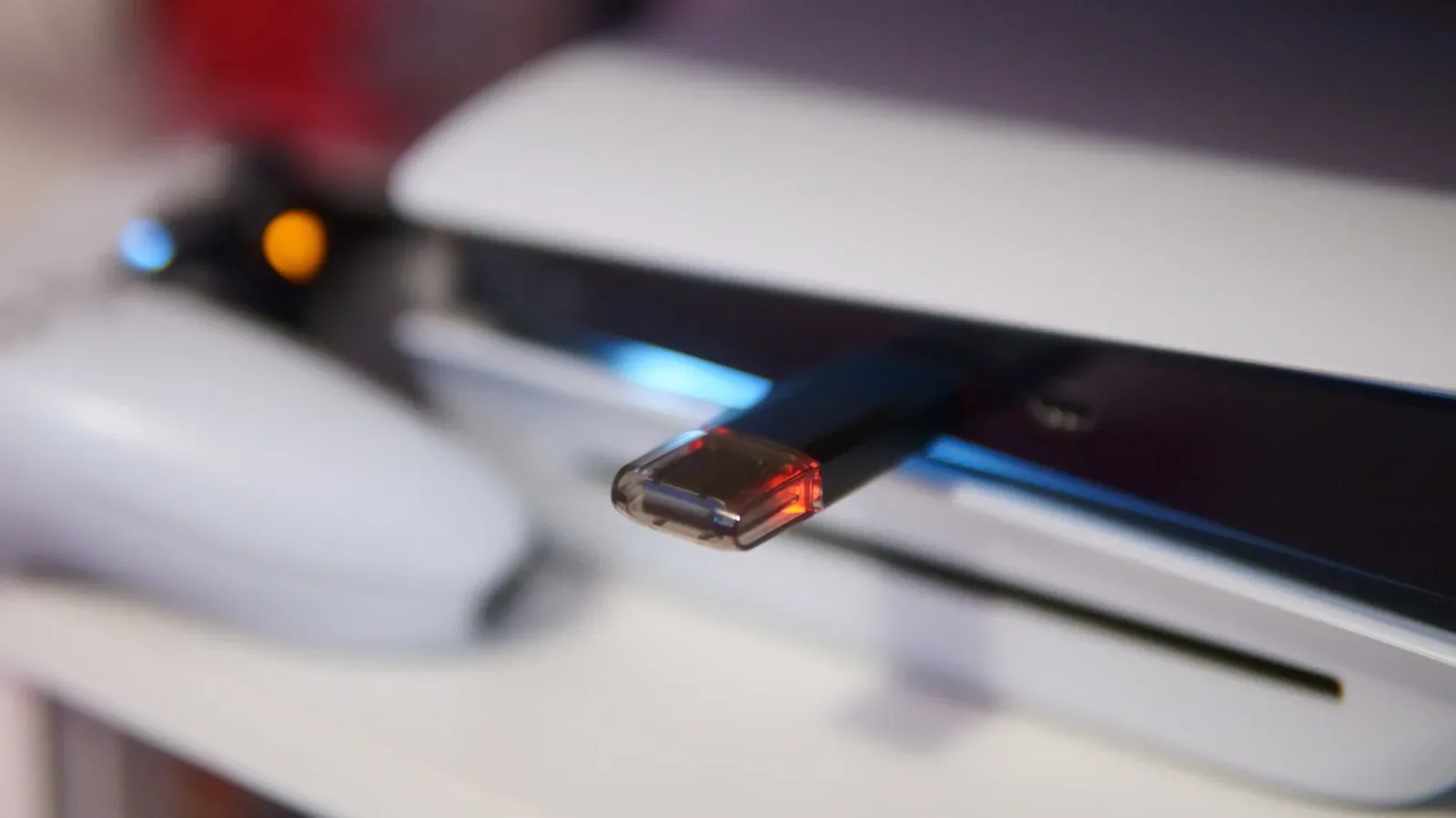
It is easy to treat the USB ports on a PlayStation 5 as dedicated DualSense charging sockets. That is certainly one of their most practical jobs, but Sony's console can do much more with them. USB connections can help manage a crowded internal drive, move captures to a computer, connect virtual reality hardware, add a headset transmitter, attach a racing wheel, and create a backup of important system data.
Knowing which port to use matters. Every PS5 model includes two 10Gbps USB-A ports on the rear. The front layout changes depending on the version of the hardware. The original PS5 has a USB-A 2.0 connection and a 10Gbps USB-C connection at the front. PS5 Slim and PS5 Pro systems instead use a USB-C 2.0 port alongside a 10Gbps USB-C port at the front.
The practical rule is simple: leave the slower USB 2.0 port for jobs such as controller charging or a low-bandwidth wireless dongle. Use a 10Gbps connection when speed is important, especially for external storage or PS VR2. Here are the most useful ways to make those ports work harder.
Use an external drive to ease storage pressure
Modern games can consume a huge portion of a PS5's storage, so an external SSD or hard drive remains a useful companion even if it is not a full replacement for internal expansion. The best permanent storage upgrade is still an M.2 SSD that meets Sony's specifications, but that route can be expensive. A USB drive provides a less involved alternative for managing a growing library.
For useful background on this topic, read PS5 Hypervisor Bug Bounty Sparks GTA 6 Piracy Debate as AI Reshapes Homebrew.
There is an important limitation: PS5 games cannot be played directly from USB extended storage. PS5 software needs the faster internal console storage or a compatible installed M.2 SSD. An external drive can nevertheless act as an archive. Move a game off the internal drive when you are finished with it, then copy it back when you want to play again. This can be particularly helpful for players with slower home broadband or restrictive data caps, as it avoids downloading a large title again.
PS4 games are more flexible. Compatible PS4 titles can be installed and played from external USB storage on PS5, making a USB drive an especially effective place for a legacy library.
A drive intended for game storage must support USB 5Gbps, also commonly called USB 3.0, and have a capacity between 250GB and 8TB. The console supports only one USB extended-storage drive at a time, and it cannot be connected through a USB hub. Connect it directly to the PS5, preferably through one of the faster ports.
For another perspective on this story, read How to Get More From Every PS5 USB Port.
To prepare a compatible drive, go to Settings > Storage > USB Extended Storage > Format as USB Extended Storage. Formatting erases the drive, so copy off anything important first.
Keep game storage and capture storage separate
A drive formatted as USB Extended Storage is not also a general-purpose drive for PS5 screenshots and video clips. Capture transfers need a standard drive formatted as exFAT or FAT32 instead. Anyone who wants long-term room for both archived games and exported media should consider keeping two separate drives: one dedicated to games, and another for captures. A smaller flash drive can also be convenient for quickly moving clips and screenshots to a PC.
Charge and quickly pair DualSense controllers
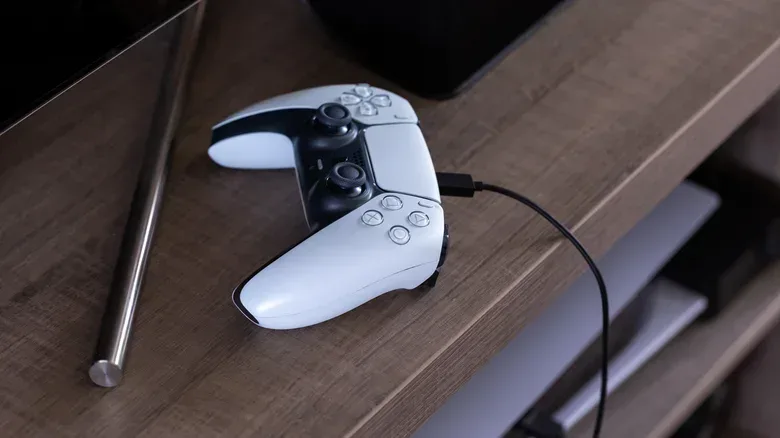
Charging a DualSense is the most familiar USB use case, whether the cable is connected only after a session or stays attached near the console. It can also be worthwhile to keep a cable in the front USB 2.0 port. Charging does not need high transfer speeds, and the arrangement means a pairing cable is always close at hand.
That pairing role is easy to overlook. Connecting a DualSense by cable is the quickest way to pair it with a PS5. It is useful after taking the controller to a friend's house, using it on a PC, or moving it between consoles in different rooms. A wired connection can save time when the controller needs to be reassociated with the console.
Players who charge in Rest Mode should also check their power-saving settings. Navigate to Settings > System > Power Saving > Features Available in Rest Mode and review the USB power option. Choosing 3 Hours stops power after that period, avoiding needless energy use. On PS5 Slim and PS5 Pro, the Adaptive setting can stop supplying power automatically once the controller is charged.
Connect PS VR2 and compatible PlayStation VR hardware
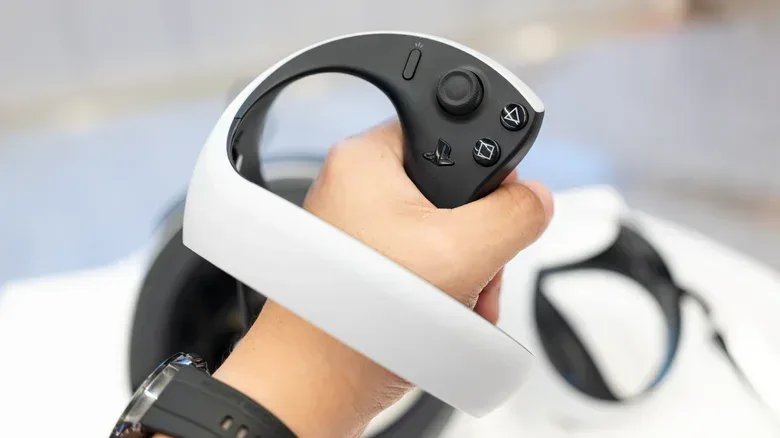
The PS VR2 headset is one of the clearest examples of why the high-speed front USB-C port matters. Its single USB-C cable must be plugged into the console's faster front connection. On PS5 Slim and PS5 Pro models, that is the lower front port. The streamlined one-cable setup is a major simplification compared with the older PlayStation VR arrangement.
The original PS VR can also work with a PS5, but the requirements are different. It relies on the PS4 camera, which needs an adapter because the PS5 does not have the old proprietary camera connector. Sony stopped distributing those adapters for free in 2024, so existing PS VR owners should make sure they have the necessary accessory before planning a setup.
The PS5 HD Camera is another USB-connected peripheral, though its role is much narrower. It is not required for PS VR2 and does not function with the original PS VR. Its main purpose is placing a player's face on stream broadcasts to services such as Twitch or YouTube. Players who do not stream have little reason to prioritize it, and third-party cameras are not natively supported by the PS5.
Expand audio, control and accessibility options
USB ports are fundamental for gaming headsets. Some headsets connect entirely by cable, while many wireless models use a USB transmitter or dongle. The transmitter handles the connection between the console and the headset, often providing a more feature-rich option than a standard Bluetooth setup. Check the headset's specific compatibility guidance, but a spare USB port can be just as valuable for audio as it is for charging.
USB also opens the door to more specialized control methods. Racing wheels can transform driving games, while fight sticks are a natural fit for fighting games. Both typically require a direct USB connection or a compatible wireless receiver. These accessories do not merely add convenience; for some genres, they can significantly change the feel of play.
Keyboard and mouse support is another possibility, although it varies from game to game. A wireless keyboard dongle is useful for typing party messages or in-game chat quickly. Some supported titles also allow a full keyboard-and-mouse setup. In games that offer this mode, matchmaking and balance rules may change. Overwatch, for example, includes a keyboard-and-mouse option that disables aim assist and places users into PC lobbies. Always look through a game's own control settings rather than assuming that every PS5 release supports the input method.
Back up the console before a major change
PlayStation Plus cloud storage is useful, but a USB backup offers another layer of protection for players who do not subscribe or simply want an additional copy. Connect a FAT32- or exFAT-formatted drive that is not configured as USB Extended Storage, then open Settings > System > System Software > Back Up and Restore > Back Up Your PS5.
From there, the console lets users choose categories to include before beginning the backup. There are caveats to understand. Trophies and M.2 SSD storage are not included. The process is also not intended as a tool for selectively preserving individual PS5 games. Restoring a PS5 backup requires resetting the system, so this is best treated as a broader recovery measure before replacing a console, making a significant hardware change, or preparing for troubleshooting.
PS4 save data offers more granular USB handling. Individual PS4 saves can be copied to a USB drive through Settings > Saved Data and Game/App Settings > Saved Data (PS4). That can be handy for maintaining local copies of older saves or transferring them where supported.
Move media and consider advanced setups
The PS5 can play video files from a USB drive, provided the drive is formatted and its folders are named in the way Sony specifies. This is a niche feature, but it gives the console a little more flexibility as a living-room media device. The same basic principle applies to screenshots and clips: a standard exFAT or FAT32 USB drive makes it easy to take console captures elsewhere for editing, archiving, or sharing.
A USB hub can help when ports are in short supply, though compatibility is not guaranteed for every accessory. Storage devices in particular should be connected directly rather than through a hub. If built-in capture tools are not enough for a recording project, a capture-card setup is another avenue for obtaining more footage without relying solely on streaming tools.
Finally, experimentation is reasonable with miscellaneous USB gear. The PS5 will usually show a compatibility message if an accessory is unsupported, or it simply will not respond. Just avoid risking important data by connecting unknown storage devices without checking their contents first.
With a little planning, the PS5's USB layout can support a cleaner and more capable setup: fast ports for storage and VR, slower ports for charging, a dedicated drive for captures, and room for the accessories that best suit the games being played.
Community
Discussion
Start the conversation.
No comments have been posted yet.