

A graphics-card upgrade is the most obvious route to higher frame rates, but it is not the only one. For PC players trying to get a steadier 60 fps, a more responsive competitive experience, or simply a game that no longer lurches during demanding scenes, there are plenty of settings worth examining before spending money on new parts.
The trade-off is simple: visual settings that make a scene look more cinematic generally ask more of the GPU and, in some cases, the CPU. PC gaming is unusually flexible because nearly every major title offers a range of presets and advanced options. The challenge is identifying which compromises will provide a meaningful performance gain without making the game look drastically worse.
That process starts outside the game, continues with its graphics menu, and ends with a realistic assessment of expensive modern features such as ray tracing, path tracing and frame generation. Here is how to approach the biggest FPS improvements on an existing gaming PC.
Start with the simple system checks
Before changing a game's image quality, make sure the PC is not wasting resources elsewhere. Close web browsers with many active tabs, chat clients, launchers, recording tools and other background applications that are not needed during play. Any program consuming CPU time, memory, storage activity or GPU cycles can contribute to inconsistent performance, especially on a modest or aging machine.
For useful background on this topic, read Control: Resonant Director Says Skipping Yellow Paint Was a Deliberate Choice.
Recording and overlay features deserve particular attention. Tools bundled with graphics software, as well as Windows features such as Xbox Game Bar, can be useful, but active recording can add overhead. Turning off capture functions when they are unnecessary may help free up resources. The improvement will vary, and it will not transform every game, but it is an easy variable to eliminate while troubleshooting stutters or low frame rates.
Physical maintenance also matters. Dust buildup in a case, on fans or around heatsinks can make cooling less efficient. Higher temperatures may lead components to reduce clock speeds to protect themselves, cutting into performance during longer gaming sessions. Cleaning a system carefully and ensuring airflow is unobstructed will not turn low-end hardware into a high-end PC, but it can help a computer sustain the performance it already has.
Use Windows settings built for gaming
Windows 11 includes a couple of useful controls for prioritizing game performance. In Settings > System > Power & battery > Power mode, setting the mode to Best Performance can encourage the system to favor speed over power savings. This is particularly relevant on gaming laptops, where conservative power settings can restrict performance.
The downside is predictable: higher power use, more heat and reduced battery life. Laptop players should expect the best results when plugged into wall power, while also keeping an eye on temperatures and fan noise.
It is also worth checking Settings > Gaming > Game Mode. Game Mode is intended to prioritize the game by reducing the impact of competing processes. It is not a magic FPS switch, but it is a sensible setting to leave enabled for most players.
Graphics drivers should be kept current as well. NVIDIA and AMD updates frequently include game-specific optimizations, bug fixes and compatibility work for new releases. Update the associated NVIDIA or AMD software alongside the driver where appropriate. Of course, newer is not always better in every individual game. If an update introduces crashes, visual glitches or a major performance regression, rolling back to a previously stable driver is a valid response.
Lower the settings that cost the most
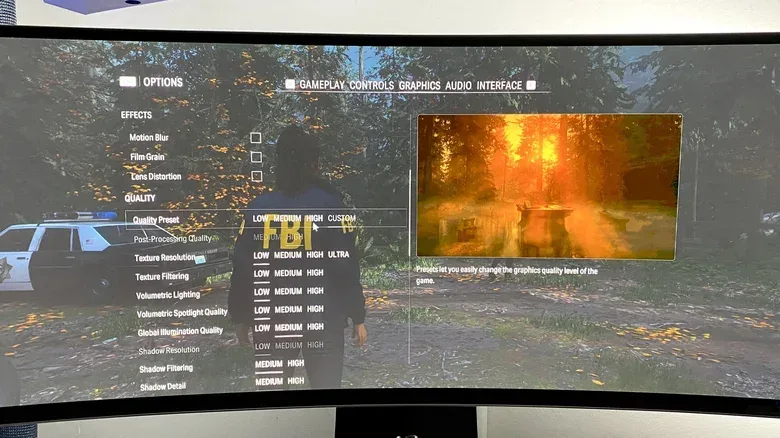
The quickest in-game solution is to select a lower global preset, then selectively restore the visual features that matter most. Many modern games analyze installed hardware on first launch and recommend a configuration. Those automatic settings are a useful baseline, particularly for players who do not want to test every slider one by one. They have proven useful in titles including Forza Horizon 6 and GTA V: Enhanced Edition.
However, an auto-detected preset should be treated as a starting point rather than a final answer. A game might target a frame rate lower than your display can comfortably show, or it may prioritize image quality over consistency. If performance is unstable, begin by reducing the settings that often carry a substantial GPU cost:
- Texture quality: Very high textures can require a great deal of video memory. Dropping this setting is especially helpful if the game is stuttering because the GPU is short on VRAM.
- Shadow quality: High-resolution dynamic shadows can be surprisingly expensive. Medium shadows often retain much of the scene's depth at a lower cost.
- Ambient occlusion: This adds subtle contact shadows around objects, but can impose a noticeable performance penalty.
- Effects quality: Particle-heavy combat, fog, smoke, volumetrics and post-processing can all become bottlenecks in action-heavy games.
- Resolution and resolution scale: Rendering fewer pixels is among the most reliable ways to improve FPS, though it can reduce image sharpness if used too aggressively.
In fast-moving games, the visual difference between high and medium settings is often much less obvious than it appears in a paused comparison image. A stable 60 fps can feel substantially better than a prettier presentation that dips unpredictably into the 30s or 40s. Test changes in a demanding location rather than relying on an easy indoor area or a menu screen.
Reduce latency and control tearing carefully
Motion blur is largely a matter of taste, but disabling it can make movement look clearer and may marginally reduce rendering work. It is a reasonable early setting to turn off for players focused on clarity and responsiveness.
In-game V-sync is another setting worth testing. It can prevent screen tearing by synchronizing output to the display refresh rate, but it may add input lag. Players who value response time may prefer to disable it in the game and instead cap the frame rate through NVIDIA Control Panel or AMD Radeon software. A sensible cap can prevent the GPU from rendering unnecessary frames and can help frame pacing, while alternative synchronization options may address tearing depending on the monitor and hardware.
There is no one setting that fits every setup. A single-player adventure may benefit from a smooth capped frame rate, while a competitive shooter may justify prioritizing lower latency. The key is to distinguish between high FPS on a counter and how the game actually feels when aiming, turning and reacting.
Make upscaling part of the plan
Upscaling, sometimes called supersampling in game settings discussions, has become one of the most important performance tools in modern PC games. Rather than natively rendering every pixel at the monitor's output resolution, the game renders at a lower internal resolution and reconstructs the final image. This reduces the raw rendering load and can significantly improve FPS.
NVIDIA's DLSS 4.5 is presented as the strongest current option, often offering image quality close to native resolution while producing much higher performance. AMD's FSR 4 is a strong choice for RDNA 4 hardware such as Radeon RX 9000 Series cards, while the older open-source FSR 3 remains relevant for owners of older GPUs. Intel Arc users should also check whether XeSS is available in their game.
Preset choice is important. DLSS Quality, for example, renders roughly 66.7 percent of the pixels of native output, then reconstructs the image. Ultra Performance drops the rendered pixel count to around 33 percent. The latter can bring major FPS gains, but the image-quality compromise is more likely to be visible, particularly on a lower-resolution display. Start with Quality or Balanced modes, then move toward more aggressive settings only if the game still needs help.
Upscaling is not identical across every title. Implementation quality varies, and fast motion, fine details, HUD elements and foliage can expose artifacts. Even so, it is usually a better first step than simply dropping the desktop output resolution, because it aims to retain a sharper final image.
Frame generation can raise the number, not always the responsiveness
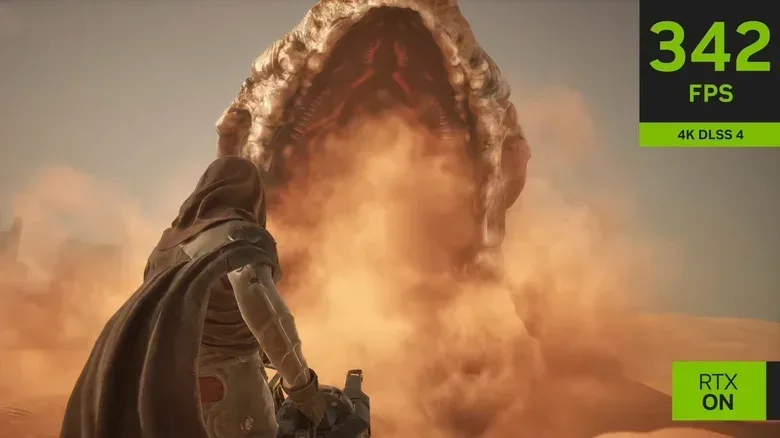
Supported GPUs can also use frame generation in selected games. This technology inserts AI-assisted interpolated frames between traditionally rendered frames, producing a higher reported frame rate and a smoother-looking presentation. NVIDIA's DLSS 4.5 Multi Frame Generation can, for example, push Cyberpunk 2077 with path tracing at 4K past 200 fps with its x6 multiplier enabled.
That result needs context. Generated frames do not remove the underlying rendering workload, and frame generation can significantly increase input latency because frames are buffered and processed. The game may look smoother but not necessarily feel as immediate at the controls. It is best used when the native base frame rate is already reasonably healthy, rather than as a rescue tool for extremely poor performance.
Experiment with it in slower-paced games or in visually demanding titles where visual smoothness matters more than split-second reactions. Competitive players, meanwhile, may prefer a lower displayed FPS with better latency and more direct control.
Turn off ray tracing before sacrificing everything else
Ray tracing is often the first major visual feature to disable when a PC is struggling. Conventional rasterized rendering uses prepared approximations for lighting and reflections, while ray tracing simulates light interactions in real time. The resulting shadows, reflections and lighting can look exceptional, but the performance cost can be severe.
Even an RTX 5090 can lose a large amount of performance when ray-tracing options are pushed to their limits. On mid-range and older graphics cards, enabling RT can cut frame rates in half or worse. Games such as Cyberpunk 2077 and Resident Evil Requiem demonstrate why the effect is appealing, but the visual gain is rarely worth a massive loss in smoothness for players targeting stable performance.
Path tracing is more demanding still. Rather than applying ray-traced effects to selected elements, it handles the full lighting system. It is available in only a limited number of games, including Cyberpunk 2077, Resident Evil Requiem and Doom: The Dark Ages. Without DLSS and frame generation, path tracing can drag Cyberpunk 2077 to around 30 fps at 4K even on an RTX 5090. Unless a system includes an RTX 5090 or RTX 5080, path tracing is generally a feature to avoid when higher FPS is the goal.
Prioritize consistency over a perfect settings preset
There is no universal graphics configuration because every game engine, GPU, display and player preference is different. But the broad strategy remains reliable: clear background tasks, update drivers, enable Game Mode, use a performance-focused power plan where appropriate, lower demanding settings, use upscaling, and treat ray tracing as a premium extra rather than a default requirement.
A game does not need every slider set to Ultra to look great. In many cases, medium shadows, modest effects settings, an intelligent upscaling mode and disabled ray tracing will deliver an experience that is both attractive and far more playable. Before replacing hardware, spend time testing those options in the games you play most. The best upgrade may be a better-balanced settings menu.
Community
Discussion
Start the conversation.
No comments have been posted yet.