
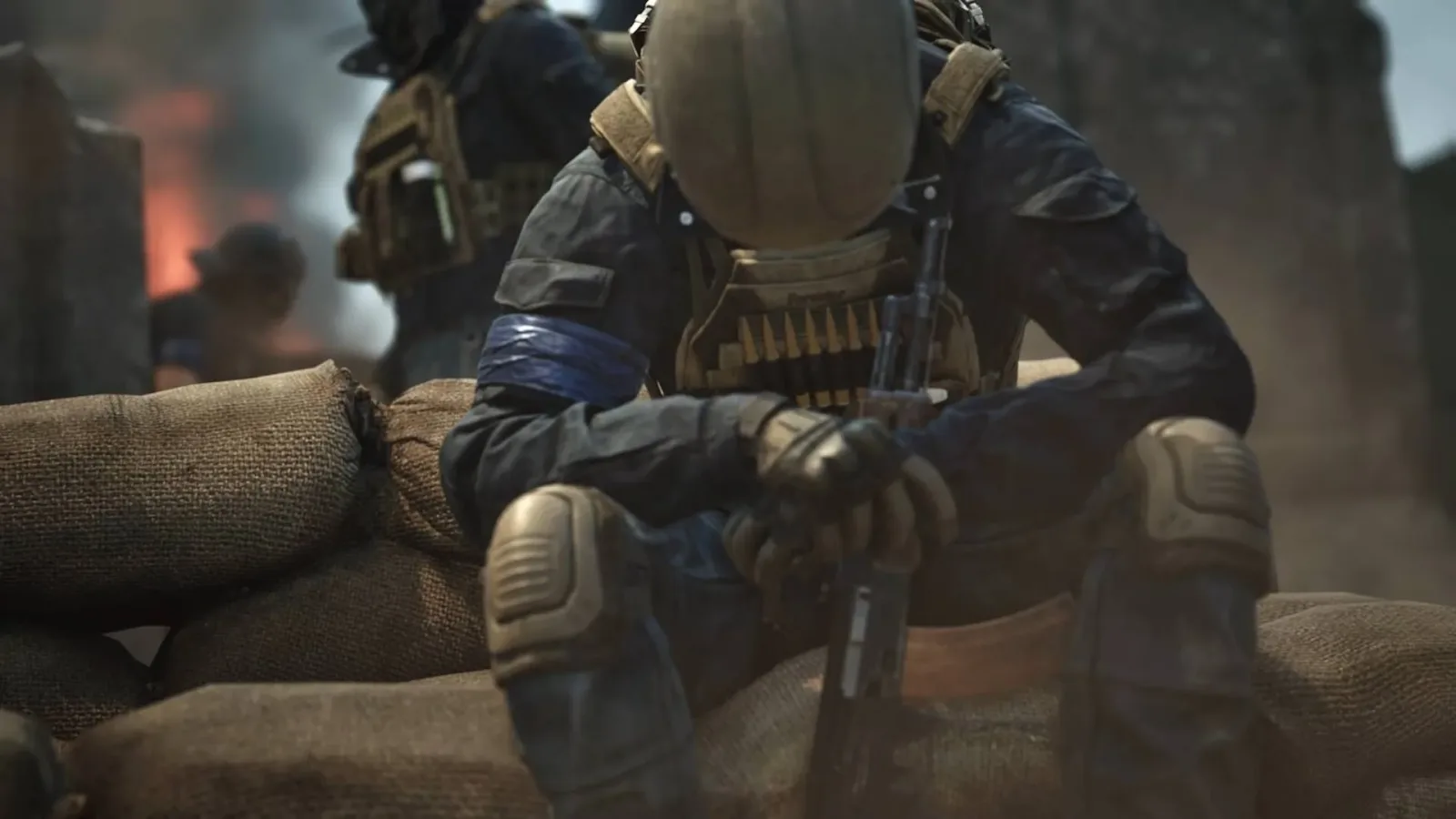
Wardogs can produce a range of error codes that stop players from launching the game, connecting to its online services, or staying in a match. Some of these messages may be rooted in a temporary server problem, particularly when a large number of players are trying to get online at once. Others can be caused by corrupted or outdated local files, remnants of earlier test builds, an anti-cheat installation issue, or an unstable connection.
There is not always a single guaranteed fix for every Wardogs error. That is especially true for broad messages that simply describe an "unexpected error," as well as issues being actively investigated by the developers. Still, working through a sensible set of checks can eliminate the most common local causes and clarify whether the trouble is likely on the game's side rather than yours.
Start with these general Wardogs troubleshooting steps
Before focusing on a particular code, run through the following steps in order. They are useful for most launch, login, and connectivity problems in the PC version of Wardogs.
- Check whether Wardogs is undergoing server trouble. If the game cannot authenticate or suddenly disconnects multiple players, the servers may be unavailable or under strain. Official social channels and the game's community Discord are useful places to look for service notices and reports from other players.
- Confirm that your internet connection is stable. An authentication error can result from a dropped connection, intermittent Wi-Fi, router trouble, or a network that blocks the game's online traffic. Restarting your router may help in situations where other online games and services are also behaving unreliably.
- Update Wardogs through Steam. Make sure Steam has finished downloading any game update. Launch-day fixes and server-side changes often coincide with client updates, and a mismatched build can prevent a successful connection.
- Restart your PC. This straightforward step can clear out hung background processes, refresh network connections, and ensure that Steam, the anti-cheat service, and Wardogs start cleanly.
- Run the game as an administrator. Permission restrictions can sometimes interfere with an application's ability to access required components. If Wardogs repeatedly fails at launch, try starting it with administrator privileges.
- Remove older Wardogs builds. Players who took part in beta testing should check for old test installations or leftover files. Earlier builds may create conflicts after the current version has been installed.
- Verify the game files in Steam. Steam can compare the installed files with the current version and replace anything missing or damaged. This is one of the most useful all-purpose fixes after a failed patch, a crash, or an incomplete download.
How to verify Wardogs game files on Steam
Verifying files does not delete your entire installation. Instead, Steam scans the local Wardogs folder and reacquires files that do not match the expected version. Give the process time to complete before launching the game again.
For useful background on this topic, read Aniimo Codes for September 2026: All Active Rewards and Redemption Steps.
- Open Steam and go to your Library.
- Right-click Wardogs.
- Select Properties.
- Choose the Installed Files section.
- Select Verify integrity of game files.
- Wait for Steam to finish the verification and download any replacement files it identifies.
Once it is done, restart Steam if it requests one. A full PC restart is also worth considering before trying to launch Wardogs again, particularly if the original issue involved a launch error or anti-cheat message.
Wardogs error 1147405308: failed online authentication
Error 1147405308 indicates that Wardogs was unable to authenticate with its online services. In practical terms, the game cannot complete the login or verification process it needs before online play can begin.
The first thing to check is whether the game's servers are having trouble. If other players are receiving the same code around the same time, local fixes may not resolve it until service is restored. When no broader outage is apparent, examine your own connection. A stable wired connection can be a useful test if you normally use Wi-Fi, though it is not required to play.
Restart Wardogs and Steam, then reboot the PC if the error continues. Confirm that the game is fully updated and run Steam's file verification process. It is also sensible to avoid attempting repeated logins every few seconds during a possible service disruption; retry after a short interval once you have checked for server information.
If error 1147405308 appears only on one network, the issue may be related to that connection. Testing on another trusted connection, where practical, can help distinguish a game-account or installation problem from a local network issue. Do not assume the problem is permanent simply because the message appears several times in one session.
Wardogs error 1413677057: unexpected error
Error 1413677057 is a less specific "unexpected error" message. Because it does not identify a single component that failed, there is no confirmed one-size-fits-all solution attached to the code.
The best approach is to use the full general checklist. Begin by checking service status and restarting the game. Then confirm the Wardogs update is installed, restart the PC, verify files through Steam, and remove any old beta build if you participated in pre-release testing. Running the game as an administrator is another step worth trying when the message occurs during startup.
Broad errors can also be temporary. If the code appeared after a period of normal play, or during a time when many players are attempting to connect, the cause may not be an issue with your hardware or installation. Keeping an eye on current community reports can prevent unnecessary reinstallation attempts when the problem is server-related.
WD-L014 and other WD-L0 launch errors
Error WD-L014, along with other messages beginning with WD-L0, is associated with Wardogs launch problems. A repair of the Elytra anti-cheat system has helped some affected players get past this category of error.
Wardogs uses Elytra as part of its anti-cheat setup. If its files or service installation are not functioning correctly, the game may fail before reaching the main menu. Repairing the component is more targeted than reinstalling the whole game and should be attempted before taking more disruptive measures.
How to repair Elytra for Wardogs
- Open your Steam Library.
- Right-click Wardogs.
- Move over Manage.
- Select Browse local files.
- Open the folder named Elytra.
- Run the executable named Elytra-Setup.
- Choose the Repair option when prompted.
After the repair finishes, restart Steam or reboot the PC before launching Wardogs. A restart can be important because anti-cheat components may need to reload before the game detects the repaired installation correctly. If the WD-L0 code remains after that, verify the Wardogs files in Steam as an additional check.
Being kicked from a Wardogs match
A "kicked from match" message is frustrating because it can look like a connection failure, an account issue, or a penalty. In this case, it has been described as a random bug that the developers are investigating. That means a local change may not consistently prevent it.
It is still worthwhile to make sure your connection has not dropped, that the servers are operating normally, and that Wardogs is updated. Restarting the game before joining another match can clear up a temporary session problem. However, players should be aware that repeated kicks may persist until a game-side fix is deployed if the underlying bug is responsible.
Do not jump to the conclusion that every unexpected removal from a match is caused by your own system. Check whether others are reporting the same behavior, especially if it begins after an update or during an apparent period of wider online instability.
When to wait rather than keep changing settings
Not every Wardogs error is fixable from the player side. Server congestion, maintenance, authentication outages, and known bugs can all generate symptoms that look similar to corrupted files or connection trouble. If you have checked your internet connection, updated the game, restarted your PC, verified the Steam installation, and repaired Elytra for WD-L0 errors, further repeated changes may have little value.
At that point, wait for service conditions to improve or for an official fix if a known bug is being tracked. Keeping notes on the exact code, when it occurs, and what happens immediately before it appears can also make it easier to identify patterns. For example, a code that only appears on startup calls for a different path than one that occurs only while joining a match.
The most reliable plan is to start broad, then narrow the problem down: check service status, confirm a stable connection, update Wardogs, restart your system, validate files, and use the Elytra repair tool for WD-L0 launch failures. Those steps cover the currently known Wardogs authentication, unexpected-error, launch, and match-kick issues without requiring a full reinstall as the first response.
Community
Discussion
Start the conversation.
No comments have been posted yet.